A dark interface and syntax theme for Sublime Text and Atom.
Predawn is a minimal Sublime Text theme and a syntax color scheme. It was originally just a slightly tweaked version (called Flatland-Alt) of the Flatland theme, which itself is a flat reworking of Soda. I decided to keep going with customization and rework the entire theme. But I owe a lot to Flatland and Soda. Thanks guys!

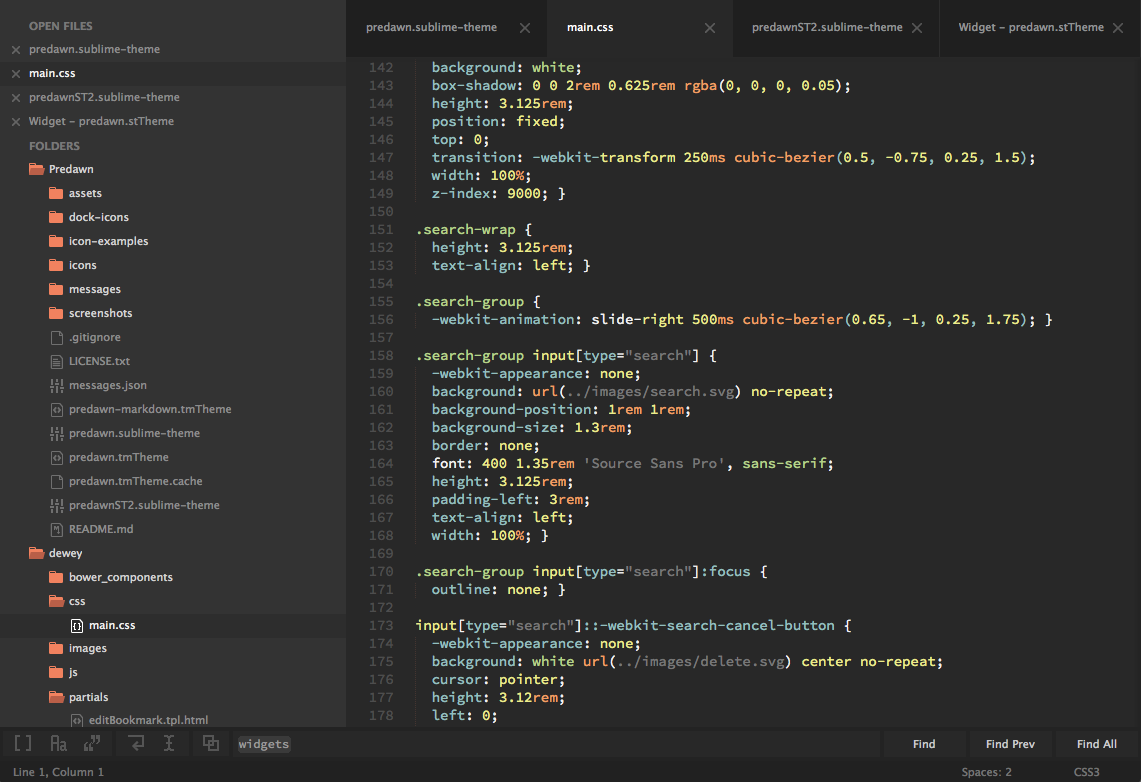
Installation for Atom
Search for predawn in the Packages section of your Atom settings tab. Install both:
predawn-uipredawn-syntax
Or from the command-line run:
apm install predawn-ui
and
apm install predawn-syntax
Also, you can view on the repo on Atom.io at http://atom.io/packages/predawn-ui
Installation for Sublime Text
###Recommended For easy installation, install with Package Control.
- Cmd + Shift + P (OS X) Ctrl + Shift + P (Win/Linux)
- Type
Package Control: Install Package - Search
predawn
Other Methods
You can clone the repo to your Packages folder. Just make sure the repo folder is named Predawn.
Of course, you can always install manually, too.
Note: File icons are only supported for DEV BUILDS 3062+.
Open your user settings file preferences.sublime-settings as shown below:

To activate the theme, add or replace your current theme settings with the code below.
{
  "theme": "predawn.sublime-theme",
  "color_scheme": "Packages/Predawn/predawn.tmTheme"
}
FOR ALL DEV BUILDS 3062+ use,
{
    "theme": "predawn-DEV.sublime-theme",
    "color_scheme": "Packages/Predawn/predawn.tmTheme"
}
*** IMPORTANT - MAKE SURE TO RESTART SUBLIME AFTER INSTALLING AND ACTIVATING PREDAWN ***
You can change the height of the file tabs by adding either to your preferences file:
"tabs_small": true
OR
"tabs_medium": true

You can change the height of the Find/Replace inputs by adding the following to preferences file:
"findreplace_small": true

After enabling the smaller size, you'll need to drag the height of the Find/Replace panel up and down to adjust it to the new dimemension.
You can change the vertical spacing of the sidebar by changing default to xsmall, small, medium, large, xlarge:
"sidebar_default": true
for example:
"sidebar_large": true


First, open a markdown(.md) file, then navigate to Sublime Text > Preferences > Settings - More > Syntax Specific - User in the menu bar.

{
	"color_scheme": "Packages/Predawn/predawn-markdown.tmTheme",
	"draw_centered": true, // Centers the column in the window
	"draw_indent_guides": false,
	"font_size": 15,
	"trim_trailing_white_space_on_save": false,
	"word_wrap": true,
	"wrap_width": 80  // Sets the # of characters per line
}
There are also some dock icons for you to choose from:

These are just a few of my other favorite options for Sublime Text:
// Typography

"font_face": "Source Code Pro",
"font_size": 14,
"font_options": ["no_round"],
"highlight_line": true,
"caret_extra_width": 1,
"caret_style": "phase",
"word_wrap": false,

// Whitespace, Matching, Copy & Auto-Complete

"copy_with_empty_selection": false,
"drag_text": false,
"match_brackets_content": false,
"match_selection": false,
"match_tags": false,
"translate_tabs_to_spaces": true,
"trim_trailing_white_space_on_save": true,

// Interface & Behavior

"close_windows_when_empty": false,
"draw_minimap_border": true,
"enable_tab_scrolling": false,
"overlay_scroll_bars": "enabled",
"open_files_in_new_window": false,
"preview_on_click": false,
"scroll_past_end": true,
"scroll_speed": 5.0,
"show_full_path": false,
Also, I highly recommend these Sublime Text packages: